
How Do I Send a Secure Email in Outlook?
- Canasa Jared Chester
- 5 days ago
- 2 min read

Introduction
Email is one of the commonly used methods for communication and data sharing. However, without encryption, emails can potentially be accessed by third parties. Encrypting emails can prevent hackers from gaining access to the sensitive data within the email. In Outlook, you can encrypt your email if you want to prevent access to emails containing sensitive information or data. So that only the intended user will know and see your email.
Go to Outlook
Step 1: Open Microsoft 365 (Office)
Open Outlook in Microsoft 365 (Office).

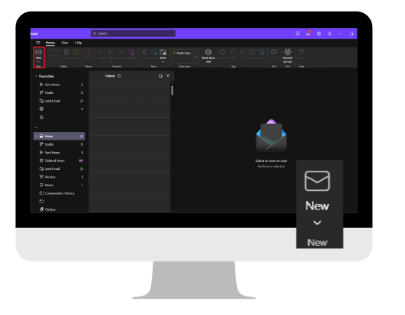
Step 2: New Email.
Create a new email.
Step 3: Find “Encrypt”.
Under the “Message” tab, if the “Encrypt” padlock button is not visible here on the default message tab, go ahead and jump over to the “Options” tab.

Step 4: Enable “Encrypt”.
Under the “Option” tab, click encrypt then check “Encrypt” to set permission.

Step 5: Notice Message Encrypted for the Recipient/s.
The recipient(s) will be informed that the email they will receive is encrypted.

Opening/Viewing Encrypted Email
Step 1: View the Encrypted Email.
In the recipient’s inbox, click the “Read the message” button to view the content of the email.

Step 2: Sign In With Google Account.
After clicking the button, it will be directed to a new tab. The recipient needs to sign in using his/her google account to open the content of the encrypted email.

Step 2.1: Sign In Using One Time Passcode.
Another method to view the encrypted email is using one time passcode. Click “Sign in with a One-time passcode” to proceed.

Step 2.2: Get the OTP.
Microsoft Office 365 Message Encryption will send you a one-time passcode to view the message. The OTP will expire in 15 minutes.

Step 2.3: One-Time Passcode.
Enter the one-time passcode.

Step 3: Encrypted Email is visible.
The encrypted email will be visible and the recipient can see what’s the content of the email.


